
How to build your website with ventas314.com
From your answers to your website live on your own .com. Follow the steps in order or jump to the one you need.
Create your website
You answer a few questions about your business and we build the website. It takes about 5 minutes.
- Tap “Create my website” and type your business’s name.
- Say what your business does: what you sell, which city and neighborhood, your hours. If that’s hard, write the basics and tap “Improve my description”.
- Add your phone number: customers message you on WhatsApp or call you on it. Email, address, Instagram and Facebook are optional.
- Choose what you want customers to do: message you on WhatsApp, call you, visit you or just see your website.
- If you have them, upload your logo and up to 6 photos of your business, and say what each one shows. If photos are missing, we use illustrations; if you turn on “AI-made photos”, we make them with AI.
- Enter your email and tap “Create my website”. We may ask a few quick questions: answer them or tap “Skip questions and continue”.
- In 3 to 5 minutes your website is ready and opens by itself. You also get the email “Your website is ready” with a “See my website” button.
Each email can create one website for free. To sign back in, always use the same email.
Create my website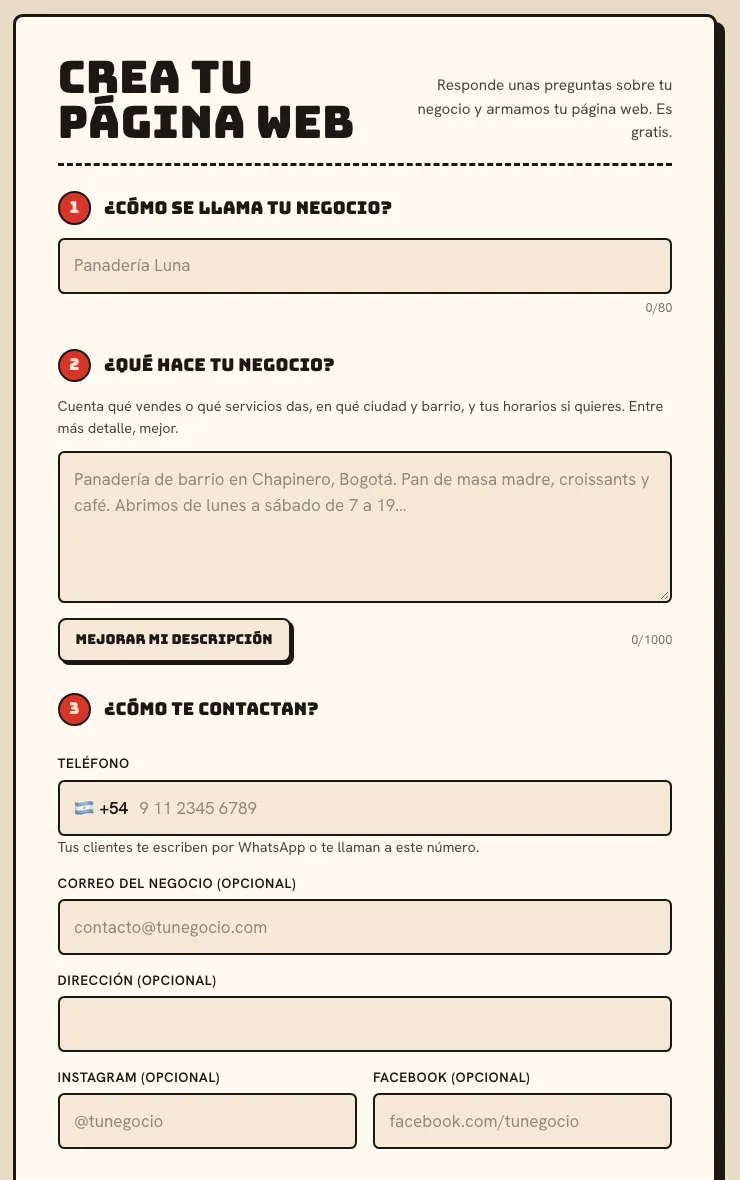
See your website
Everything about your website is in “My website”, sorted into tabs. The first one is “Preview”.
- In “Preview” you see your website the way your customers will.
- Use “Phone” and “Desktop” to see it on each screen: most of your customers will see it on a phone.
- Tap “Open your website in a new tab” to look through the whole page.
- Every change you make shows up here in seconds.
Until you publish it, only you can see your website.
Go to Preview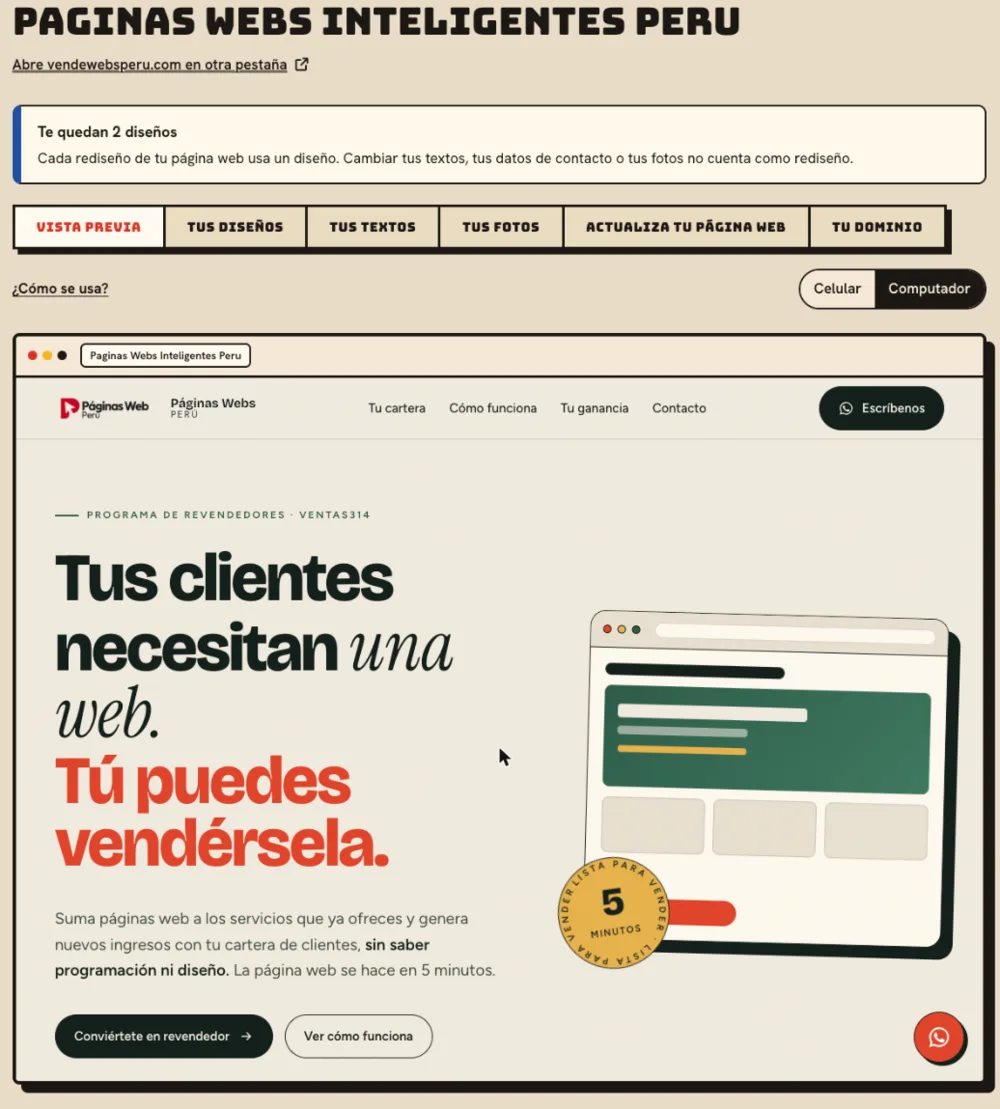
Come back to your website anytime
There’s no password: you sign in with a link we email you.
- Tap “My websites” at the top of the home page.
- Enter the email you used to create your website and tap “Email me the link”.
- Open the email “Your websites on ventas314.com” and tap “Sign in to my websites”. If it doesn’t arrive in a few minutes, check your spam folder.
- You’ll see your websites: tap “Update your website” to get to “My website”.
The link works once, for one hour. If it expired, ask for another one.
Go to My websites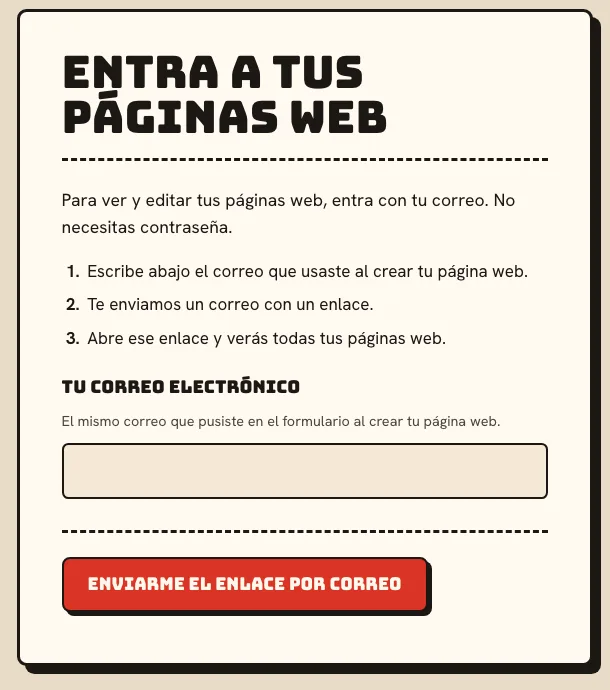
Change your text
Fix a price, your hours or any sentence without changing the design. It’s free.
- Open the “Your text” tab: all the text on your website is there, in the order it appears.
- Tap the text you want to change and type the new one.
- Tap “Save changes”. You see it in “Preview” right away.
- Under “How it shows up on Google” you change the title and description Google shows.
No text can be left empty. To remove part of the page, ask in “Update your website”.
Go to Your text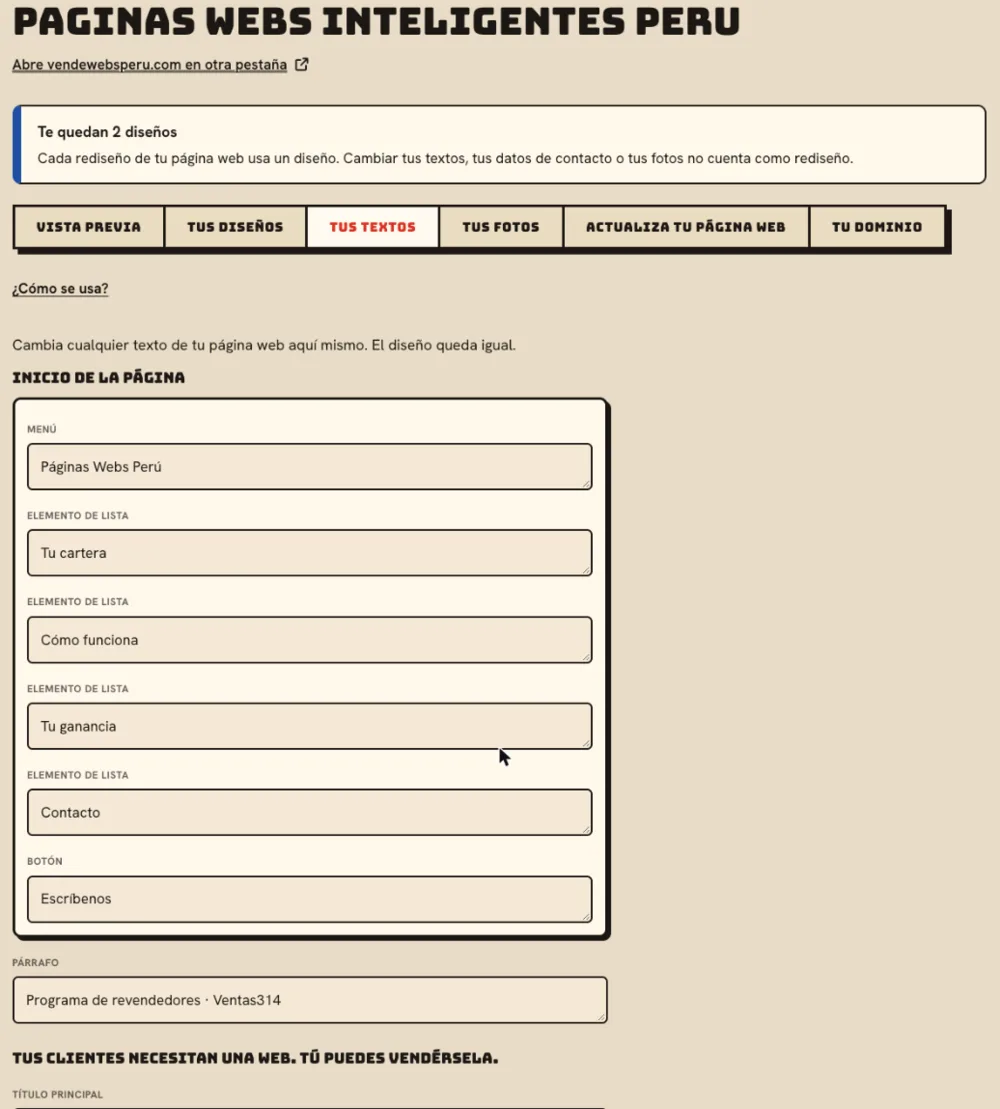
Change your photos and logo
Use real photos of your business: customers trust you more when they see your place, your products and your work.
- Open the “Your photos” tab.
- For the logo, tap “Upload logo” or “Change logo” and choose the image.
- To add photos, tap “Add photos” (up to 6) and write what each one shows: that way we put it in the right spot.
- To take a photo out, tap “Remove”. If you change your mind, tap “Keep”.
- Tap “Put these photos on my website”. It takes a few minutes: you’ll see it in “Preview”.
- To swap an AI-made photo for one of your own, tap “Swap for my photo” under it, choose your photo and tap “Put my photos in”. It goes in the same spot and takes a few seconds.
Swapping an AI photo for your own is free. If you add photos and your website has no room for them, we redesign it, and that uses one of your designs.
Go to Your photos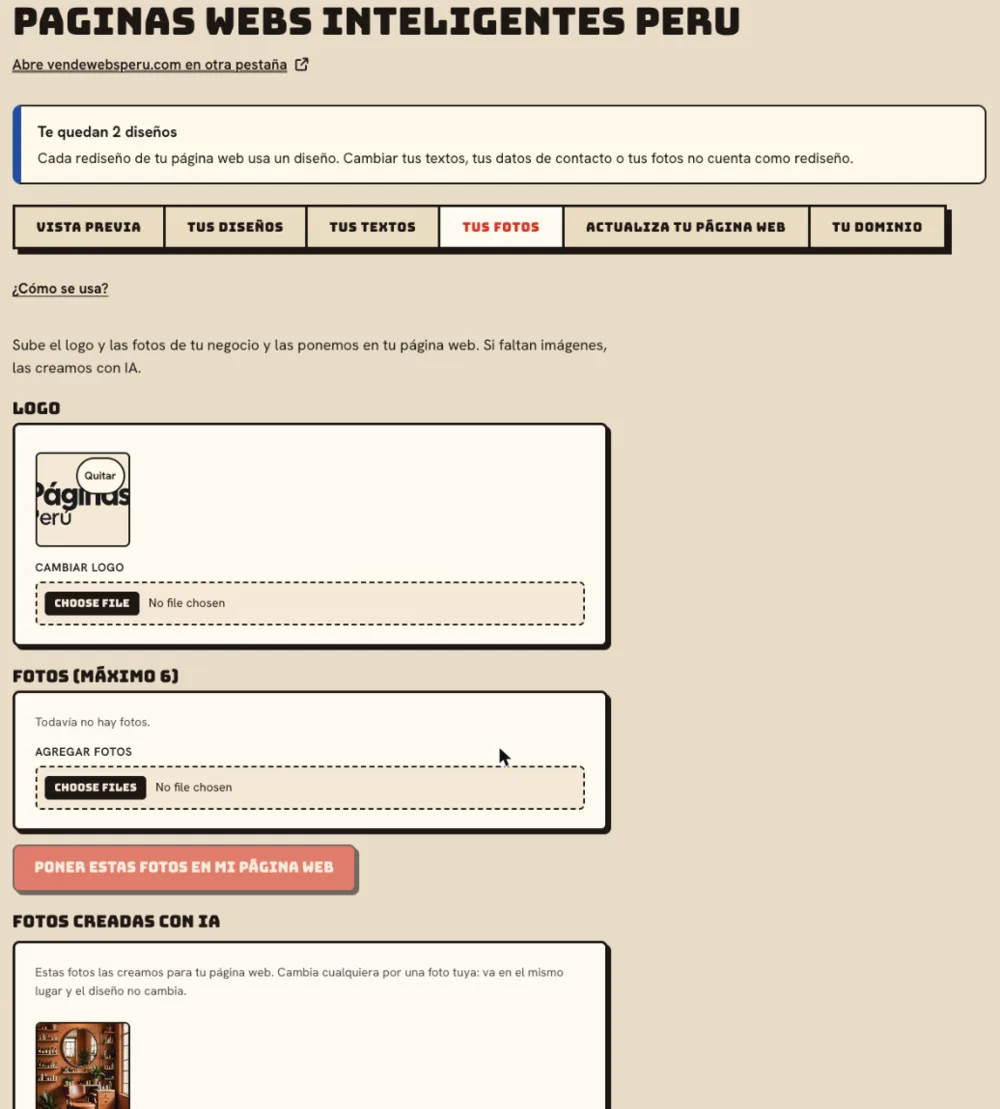
Ask for changes by writing
For everything else, write what you want to change, like in a chat.
- Open the “Update your website” tab.
- Write your change in your own words, for example “Add that we do home delivery”, and tap “Send”.
- In seconds the change shows up in “Preview”, and your message is marked “Website updated”.
- If you don’t like it, tap “Undo” on the latest change.
- To keep going on your phone, scan the QR code with your camera: it opens the same chat.
Photos can’t be sent in the chat: upload them in “Your photos”.
Go to Update your websiteTry another design
If you want another style, ask for a redesign: we make a new website with the same text and photos.
- In “Update your website”, write your idea, for example “make it more modern, with dark colors”.
- Tap “Redesign with this idea”. We may ask a few questions; in a few minutes your new design is ready.
- Open “Your designs”: they’re all kept there. Tap “View” to look at one and “Use this design” to go back to it.
You get 3 free designs, counting the first one. Going back to a saved design doesn’t use up designs. If you run out, you can buy 3 more.
Go to Your designs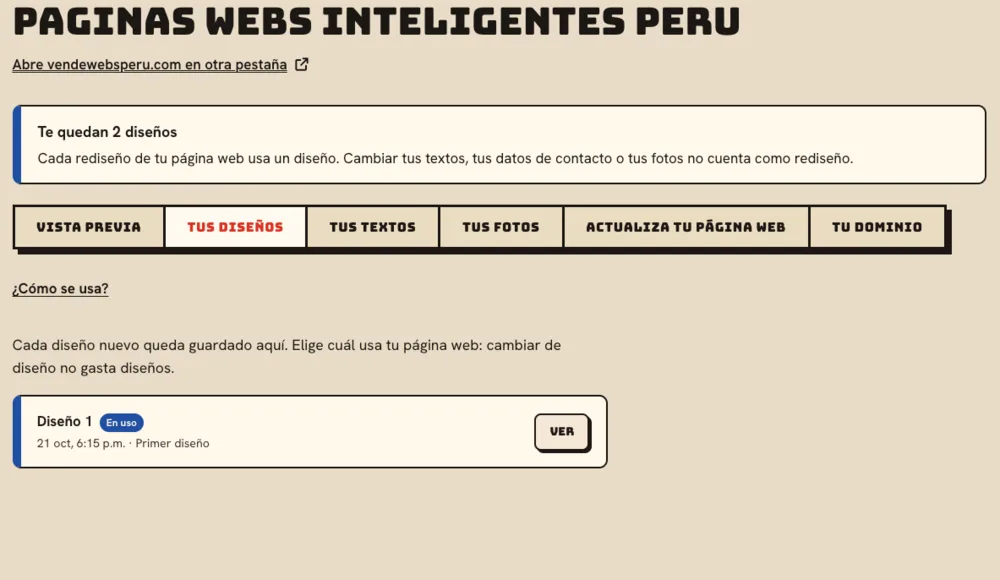
Publish your website on your own .com
When you like it, publish it on an address of your own, like yourbusiness.com, so customers can find it.
- Open the “Publish your website” tab.
- Pick one of the ideas, or type the name you want and tap “Search”.
- Next to an “Available” address, tap “Choose”.
- Tap “Start plan” and pay the monthly plan with a card, PayPal or Apple Pay.
- We register your domain and publish your website. It can take up to an hour, and we email you when it’s live.
- From then on the tab is called “Your domain”. In “Manage my plan” you change your card or cancel.
The .com is included for the first year. You can cancel anytime.
Go to Publish your website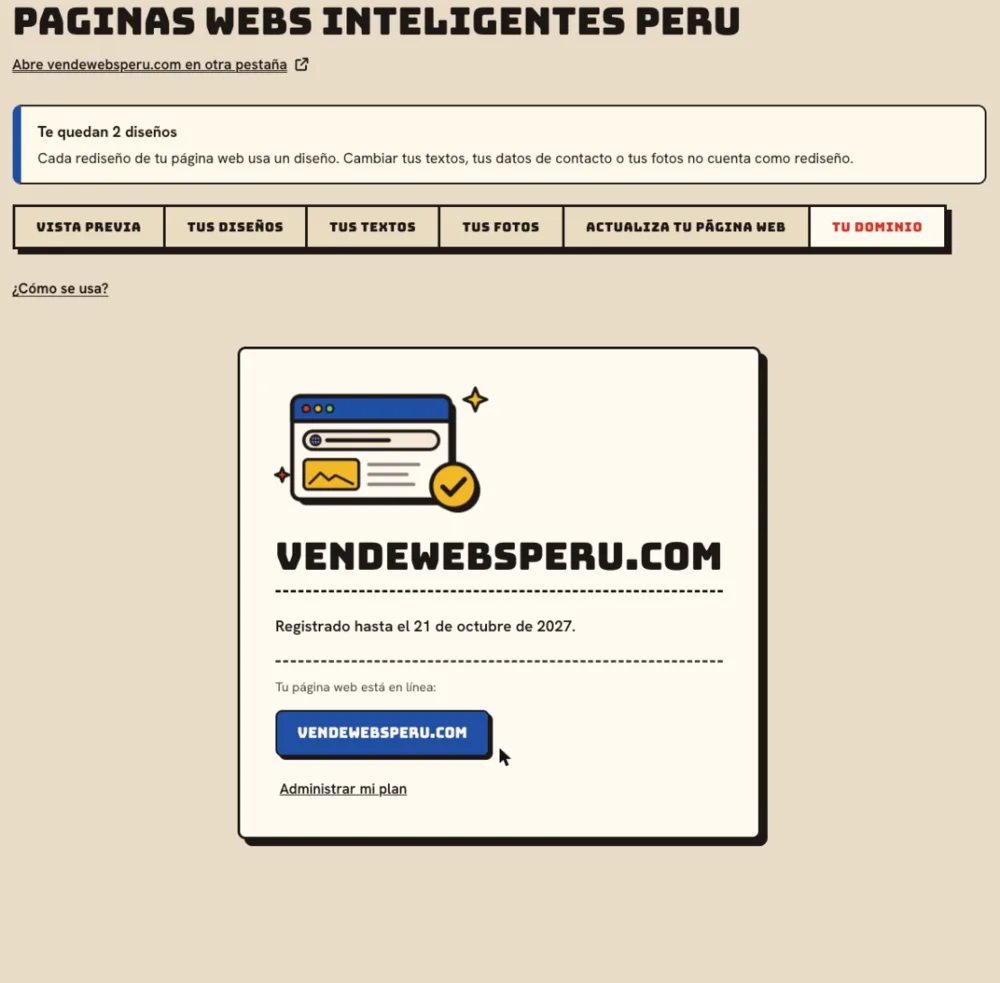
Frequently asked questions
How much does it cost?
Creating your website and trying 3 designs is free, with no card. You only pay the monthly plan if you decide to publish it on your own .com. The price for your country is on the home page.
Which changes are free?
Changing your text, your contact details and your photos, asking for changes in the chat, undoing, and going back to a saved design. Only a redesign uses one of your designs.
How long does each thing take?
Your first website, 3 to 5 minutes. A text or contact change, a few seconds. A redesign or new photos, a few minutes. Publishing on your .com, up to an hour.
Who sees my website before I publish it?
Only you. Your website isn’t on the internet until you publish it on your .com.
How do I cancel my plan?
In the “Your domain” tab, tap “Manage my plan”. Your website stays published until the end of the month you paid for.
Anything else? Email us at soporte@ventas314.com.